How to Make a Font with AI (Step by Step)
Learn how to make a font with AI: write a style prompt, generate every letter, fix weak glyphs, tune kerning, then export and install a real .otf or .ttf file.
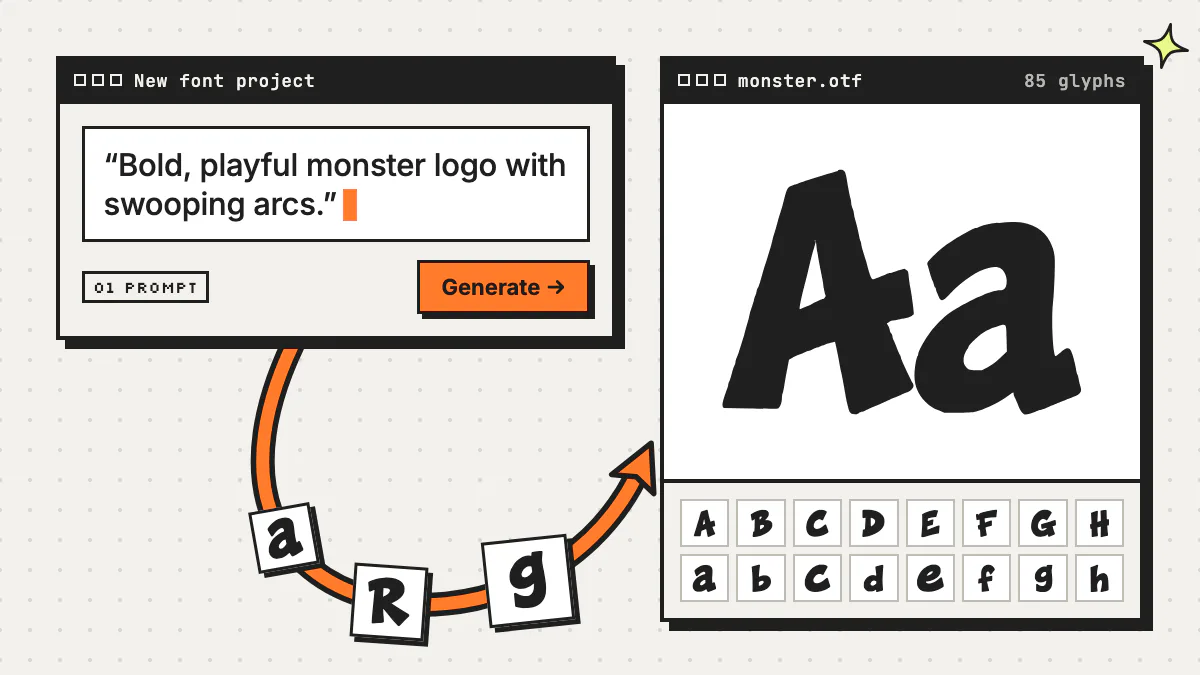
To make a font with AI, describe the style you want in one sentence (or upload a reference image), let an AI font generator draw every character, fix the few letters that came out wrong, check the spacing, then export an .otf or .ttf file and install it. The character sheet itself generates in roughly 30–90 seconds; the rest is as quick or as picky as you like.
This guide walks through each step in Fontjohn, the AI font generator we build, with real screenshots from the app. You’ll also get the exact prompts behind eight real fonts, why they worked, and an honest list of what AI font tools still can’t do. Most of the advice applies whichever tool you use.
Key takeaways
- Making a font with AI comes down to five moves: describe the style, generate the character sheet, fix weak letters, tune the spacing, then export and install the font file.
- The best font prompts describe shape, not just mood: name the style family, the stroke weight, and one signature detail and where it shows up.
- An AI font generator should give you an installable .otf or .ttf file, not just a picture of letters; Fontjohn builds a complete 85-glyph font (A–Z, a–z, 0–9 and 23 punctuation marks).
- Expect to regenerate a few letters: every run draws different glyphs, so fixing individual characters is a normal part of the process.
- Fonts downloaded on a paid Fontjohn plan are yours to use commercially, but you shouldn’t use AI to copy a proprietary typeface or a trademark.
What do you need to make a font with AI?
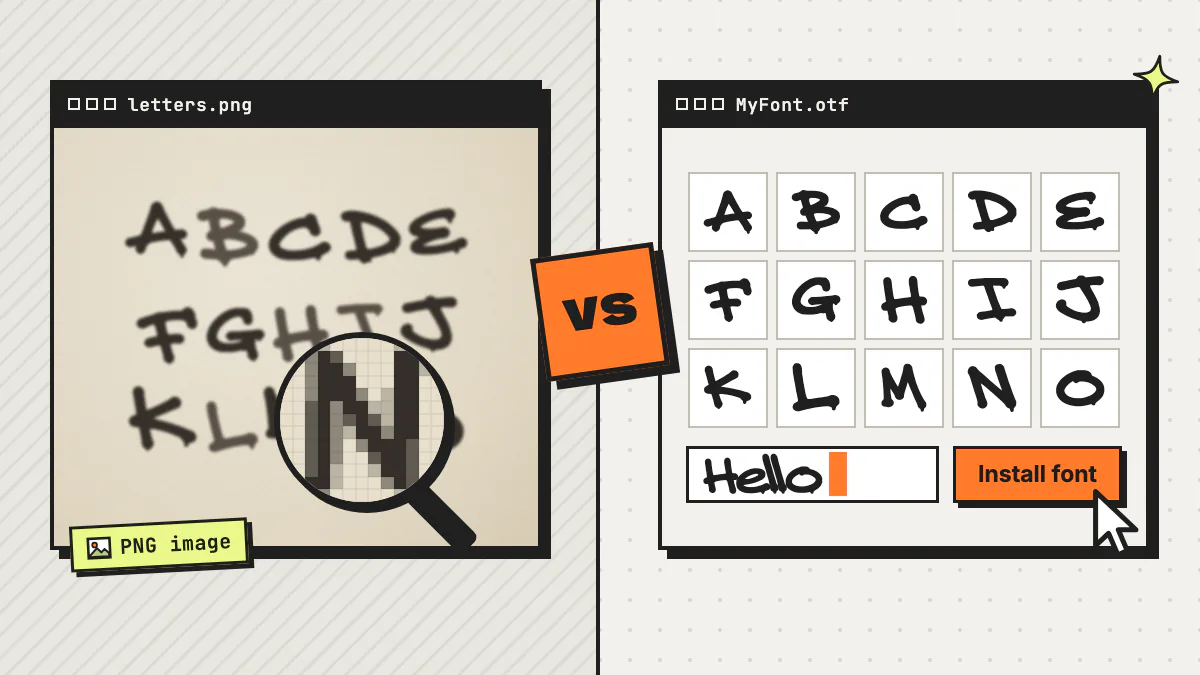
You need a style idea, optionally a reference image, and a tool that outputs an actual font file. A font is more than a picture of an alphabet: it’s a file of vector outlines for every character, plus spacing and kerning data, in a format like OpenType that your computer can install.
Microsoft’s OpenType overview describes the format as an extension of Apple’s TrueType, and says the same font file works on both Mac and Windows. That’s why .otf and .ttf are the files you want at the end. An image generator can draw great lettering, but you’d still have to cut out, trace and space every character yourself; we compare the two routes in Fontjohn vs ChatGPT for fonts. Here’s how the main ways to make a font stack up:
| Feature | What you do | Best for |
|---|---|---|
| Font editor, by hand | Draw and space every outline yourself | Type designers, long-lived text fonts |
| Handwriting template | Write each letter on a printed grid, then scan it | A font of your own handwriting |
| Image generator + manual build | Prompt for lettering, then trace and assemble it | People who already use a font editor |
| AI font generator | Write a prompt or drop in an image, then refine | Display fonts, brands, merch, fast ideas |
How to make a font with AI, step by step
In Fontjohn, making a font follows the tabs across the top of the app: Prompt, Generate, Refine, Kerning, Weights and Export, with History keeping every font you’ve made. Here’s the full run with screenshots from our demo; most steps link to a deeper section below. (The demo was recorded before the Weights tab was added, so your app shows one more tab than the screenshots.)
Describe the font (or drop in a reference image)
Type one sentence into the “Describe the font you want” box. Got lettering you love? Attach it as a reference image and hit Describe style: the AI writes a style description of the image into your prompt, and you can edit any words before generating. How to write a good prompt
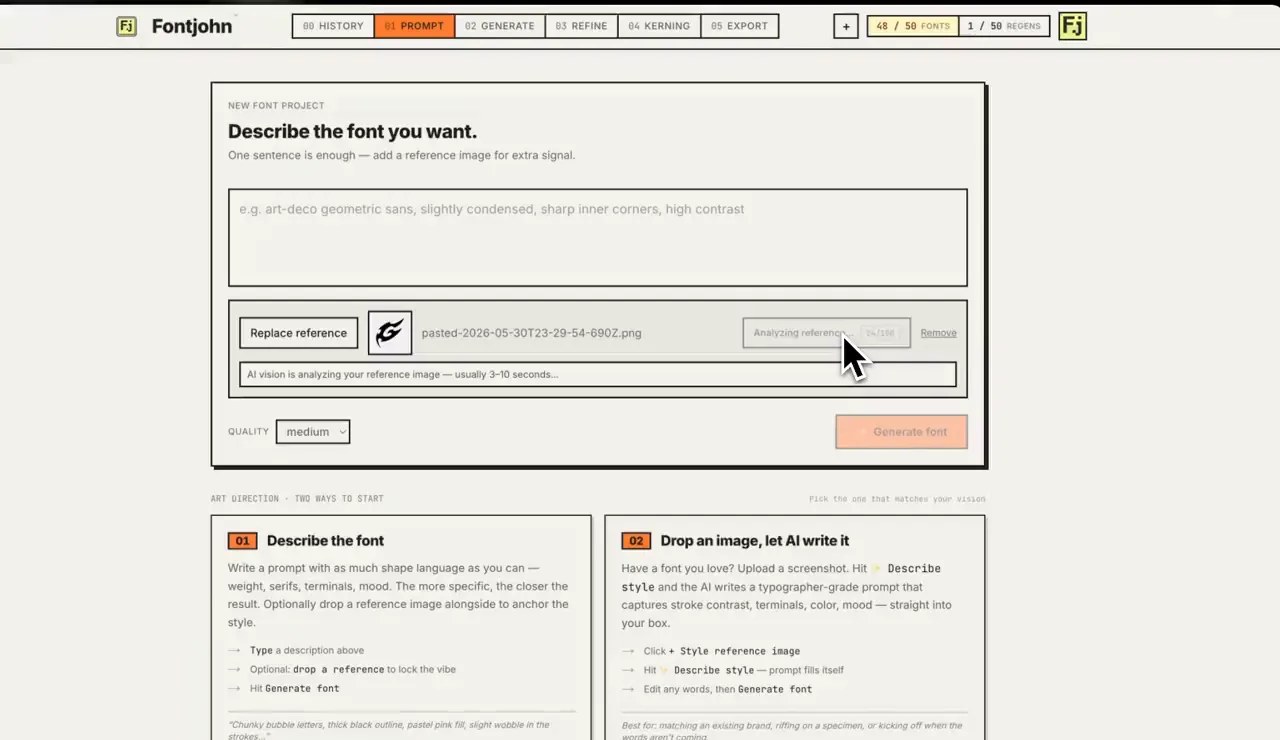
A reference image being analyzed, with the two ways to start below: describe the font, or drop an image and let Describe style write the prompt. Generate the character sheet
Hit Generate font. In roughly 30–90 seconds you get all 85 characters (A–Z, a–z, 0–9 and 23 punctuation marks), each in its own cell. Click a cell and hit Regenerate to redraw just that character. How to fix letters
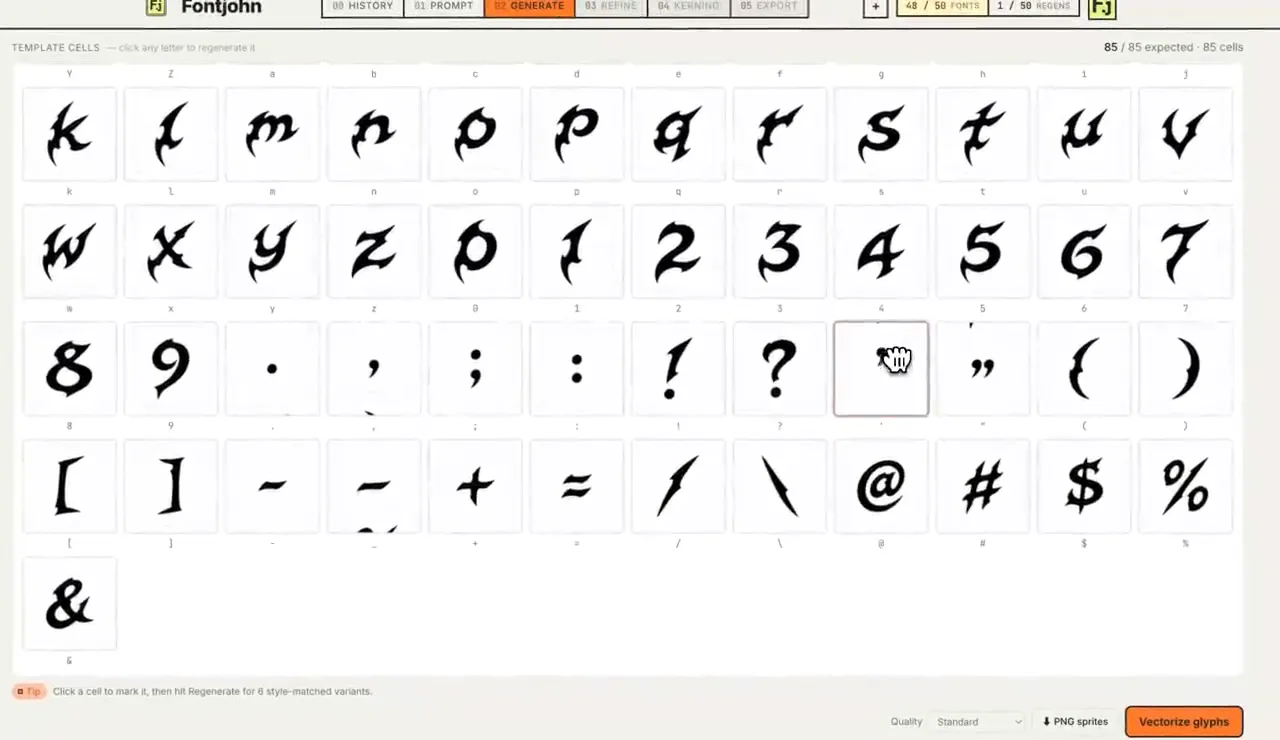
One cell per character, so you can regenerate a single letter without touching the rest. Refine the outlines
Click Vectorize glyphs and every letter becomes a vector outline. Pick a glyph, then adjust simplify, corner sharpness and snap-to-grid, or drag its anchor points directly. Refining tips
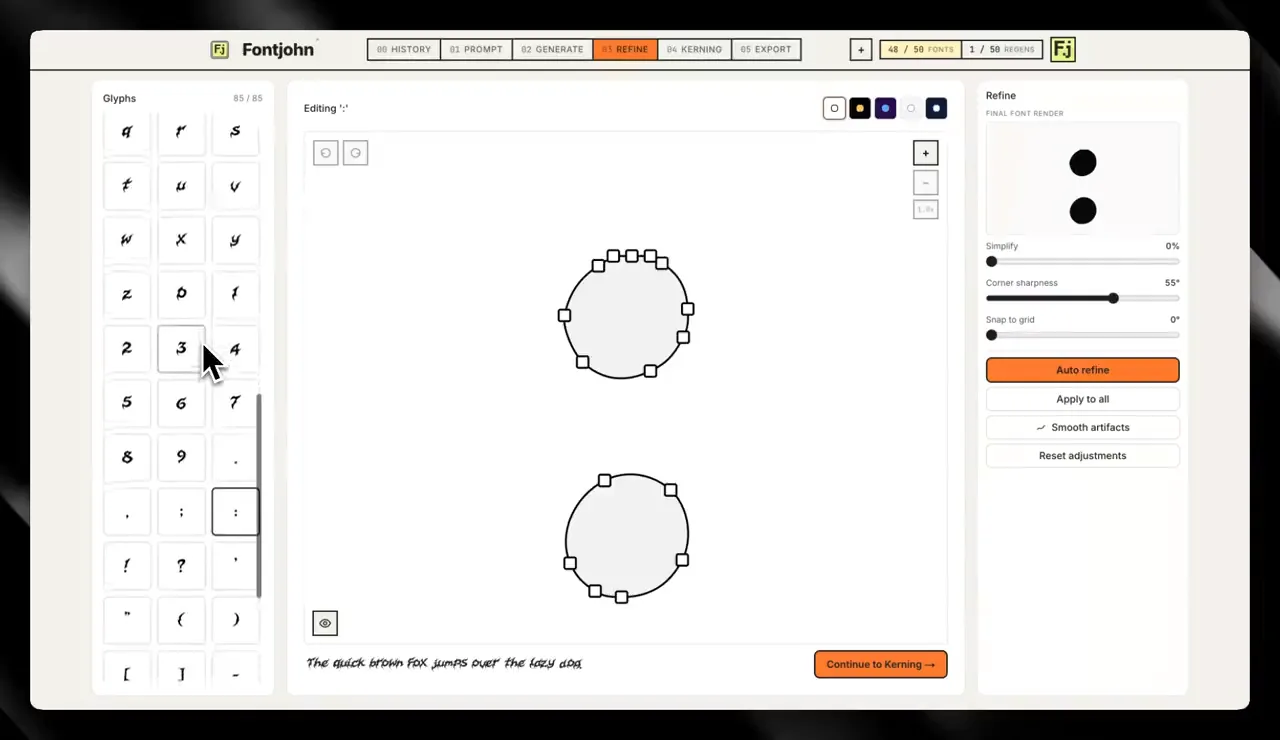
Glyph list on the left, editable anchor points in the middle, sliders on the right, and a live pangram underneath. Check kerning and letter spacing
Fontjohn kerns the font automatically. In the Kerning step you can adjust individual letter pairs and overall letter spacing, and your changes are baked into the exported font. Kerning vs tracking
Add weights and accents (optional)
On Pro and Studio, derive Light through Black weights from your Regular, and add accented letters for 40+ European languages. More on weights and accents
Test it and export
The Export step is a type tester: headline and paragraph testers, a size ladder, the character tray and poster previews. When it reads right, download it (downloads need a paid plan).
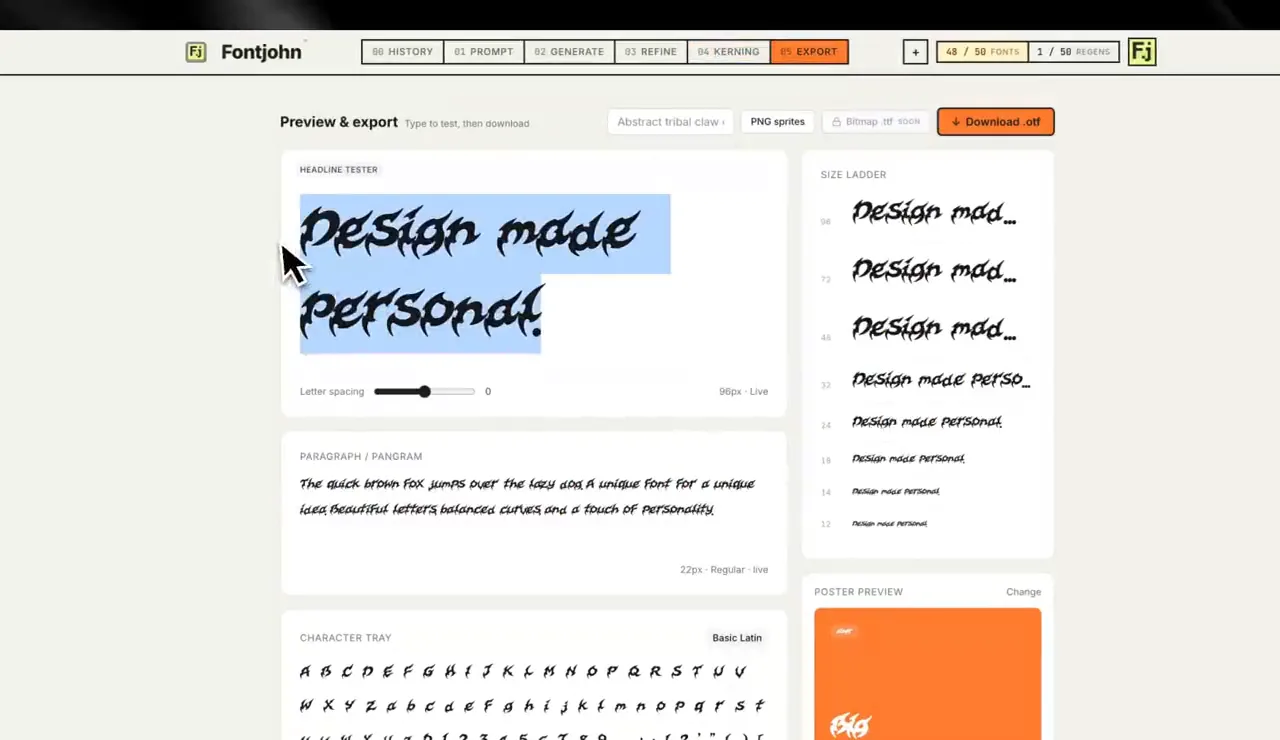
Type your own words and check them from 96px down to 12px before you download. Install the font
On a Mac, double-click the downloaded file and click Install, and the font shows up in your apps like any other. Formats and installing on other devices
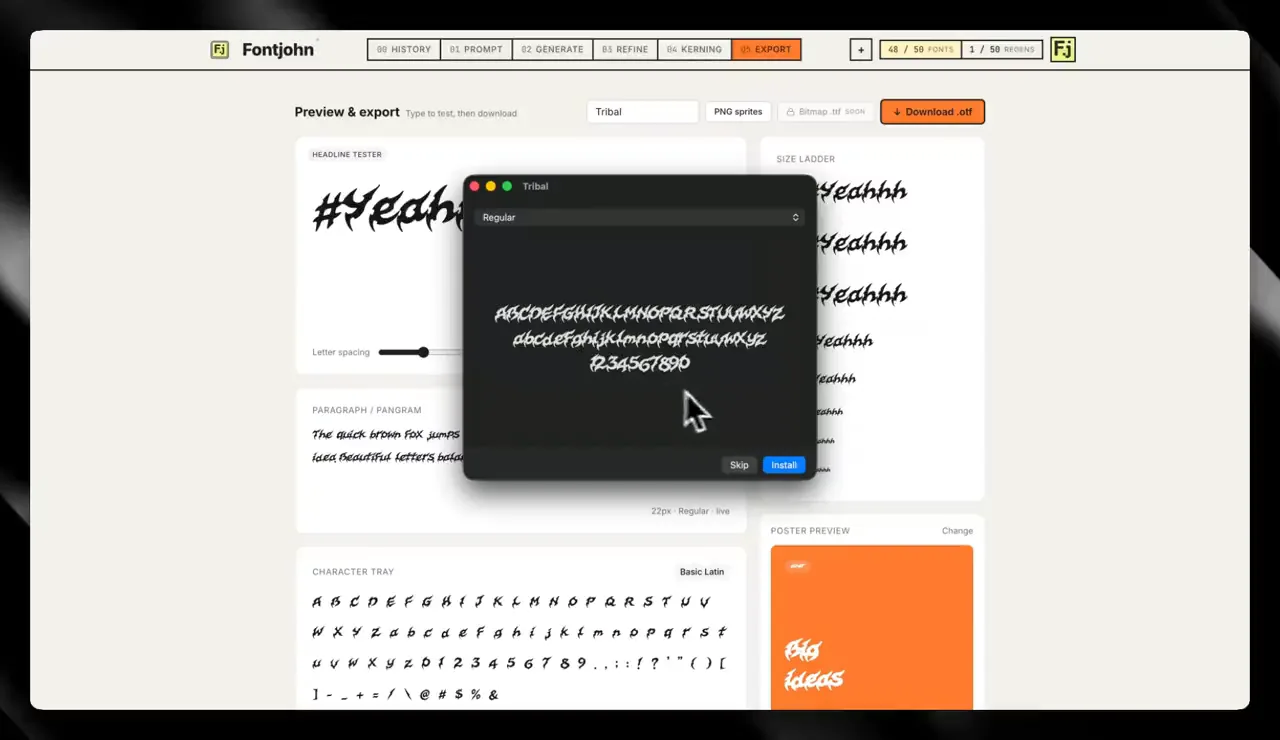
The exported font opened on a Mac, one click away from installed.
How to write a good AI font prompt
A good font prompt describes letter shapes, not just a vibe. Start with a style family (script, stencil, block, bubble), add weight and construction (bold, condensed, sharp corners), then one signature detail and where it appears. One clear sentence of shape language beats a paragraph of adjectives.
A strong prompt usually has these parts:
- A style family or medium. “Graffiti tag”, “street stencil”, “vintage handwriting”. These words carry a lot of shared meaning, so they do most of the work.
- Weight and build. Bold or hairline, condensed or wide, rounded or sharp, high or low contrast between thick and thin strokes.
- One signature detail, with a location. “Ink bleed at the terminals” (the ends of strokes) beats “messy”, because it tells the AI where the effect lives on every letter.
- A mood, if you need one. Make the words agree: “modernist and industrial” pulls one way; “elegant and grungy” pulls two.
| Feature | Vague | Specific |
|---|---|---|
| Retro | “A cool retro font” | “Chunky 1970s display letters, rounded corners, thick even strokes” |
| Handmade | “Handwritten style” | “Quick felt-tip marker handwriting, slight right slant, uneven baseline” |
| Edgy | “Something edgy for a band” | “Condensed blackletter with cracked, chipped edges” |
Using a reference image and Describe style
When the words aren’t coming, show instead of tell. Attach a photo of a sign, a sketch or a logo you drew, then hit Describe style. The AI studies the image and writes a style description straight into your prompt box. Change anything that’s off (it’s your prompt now), then generate. It works best for lettering you made yourself or have the rights to use.
What can you create? Eight real fonts and their prompts
You can make a wide range of display styles, from graffiti and glitch to stencil, script and blocky modernist capitals. Below are eight real fonts made with Fontjohn, set live on this page, each with the exact prompt that produced it. None is longer than ten words.
Hello, John
Hello, John
Hello, John
Hello, John
Hello, John
Hello, John
Hello, John
Hello, John
What each prompt does well, so you can borrow the pattern:
- FJ Bubble: a genre (graffiti), a shape (bubble) and one detail pinned to a specific part of the letter (ink bleed at the terminals).
- FJ Glitch: “horizontal” gives the AI a rule it can repeat on every character, which helps the whole set feel consistent.
- FJ Monster: weight, mood and a recurring shape motif (swooping arcs), in that order.
- FJ Script: proof that two words can work when the category is well understood. A short prompt leaves more of the look up to the AI, so add details if you have something specific in mind.
- FJ Claw: a motif plus a shape rule (sharp protrusions). The walkthrough above used a tribal-claw prompt too.
- FJ Stencil: a construction method, plus “deliberate” to signal that the roughness is part of the design.
- FJ Spray: naming the tool (spray paint) implies the stroke texture without spelling it out.
- FJ Monolith: one form and two mood words that agree.
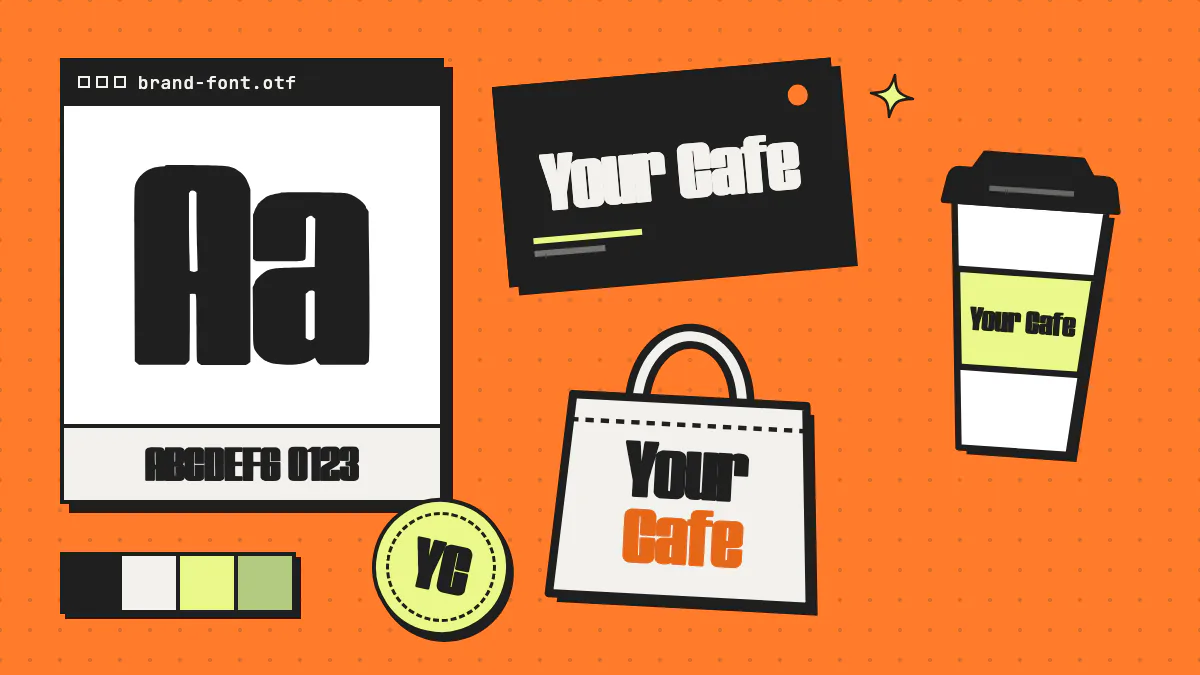
The pattern: one core style, one or two concrete details, nothing that fights. Making lettering for a business? Our guide to custom fonts for brands covers where a one-of-a-kind font earns its keep.
How to fix letters that came out wrong
Fix bad letters in two places. On the Generate step, click the cell of any character that breaks the style, hit Regenerate and pick the best of the style-matched variants. After vectorizing, clean up outlines in Refine with the simplify, corner sharpness and snap sliders, or by dragging anchor points.
Every run draws different glyphs, so a few imperfect characters are normal. Before you vectorize, check for:
- Look-alikes: O and 0, l, I and 1, S and 5 should still be distinguishable.
- The odd one out: a letter clearly thinner, bolder, wider or more slanted than its neighbors.
- Stray marks and oversized punctuation: specks in small cells, or a comma nearly as big as a letter.
Each regeneration uses a regen credit, and regens come with the paid plans: Pro includes 10 a month and Studio 15, and unused regens roll over (up to twice your monthly amount) while you’re subscribed.
Refining outlines
- Simplify reduces points and smooths wobbly edges. Go easy on textured styles like distressed stencil, or the texture goes too.
- Corner sharpness decides which curves stay curves and which become crisp corners.
- Snap to grid straightens lines that are nearly horizontal or vertical, which tidies geometric styles.
- Anchor points handle the fussy stuff: drag one to fix a bump or even out a curve.
How to set kerning and letter spacing
Kerning adjusts the space between specific pairs of letters; letter spacing, or tracking, changes the space between all letters evenly. Fontjohn applies automatic kerning, then lets you edit individual pairs and set overall letter spacing in the Kerning step. Your overrides are baked into the exported font file.
As the type foundry TypeType explains, kerning evens out the spacing in pairs of letters with different shapes, like A and V, while tracking manages the overall density of the text. AI-drawn display letters often have unusual shapes (claws, swashes, drips), so treat automatic kerning as a starting point:
- Test the classic trouble pairs: AV, To, Ty, LT, Yo, and r followed by a period. Diagonal and overhanging shapes are where gaps show up.
- Type the words you’ll actually use, like your brand or shop name. Those pairs matter most.
- Squint at a line of text. Gaps and collisions stand out when you stop reading.
- Set tracking by use. TypeType’s article suggests tightening it for headlines and logos and opening it up for text set in all caps.
How to add weights and accented letters
On Fontjohn’s Pro and Studio plans, the Weights step derives Light, Medium, SemiBold, Bold and Black from your finished Regular without extra AI generations, and you download them together as one family. Latin expansion adds accented letters for 40+ European languages, drawn in your font’s own style; start it with the Add accents button on the Export step.
A family lets you pair a bold headline with a lighter subhead in the same design. Because weights come from the Regular, get the Regular looking right first.
The standard 85 characters cover basic English text. If your audience writes “café”, “Straße” or “smørrebrød”, Latin expansion adds the accented letters plus ß, Æ, Ø and Ł, and symbols like €, £, ¥, © and ™, curly quotes, dashes and guillemets. It’s included on 3 fonts a month with Pro and 10 with Studio.
How to export and install your AI font
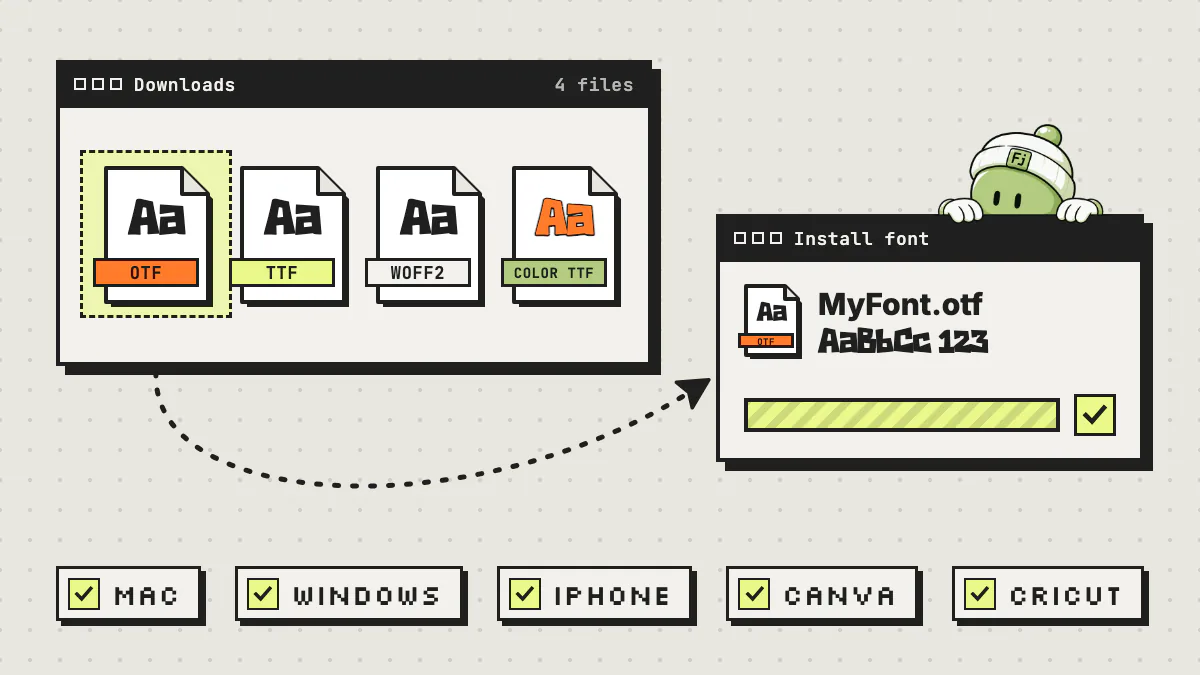
Test the font in the Export step’s headline and paragraph testers, then download it. Use .otf for most desktop design work, .ttf when an app or device asks for it, and WOFF2 for websites. Then install it like any other font.
| Feature | Use it for |
|---|---|
| .otf | Desktop design apps on Mac and Windows; a good default |
| .ttf | Apps or devices that ask for a TrueType file |
| WOFF2 | Web fonts for your website |
| Color .ttf | Keeping the sheet’s colors, when it has color (in apps that support color fonts) |
| PNG glyph sprites | Individual character images |
| Family zip | All your weights in one download |
Downloading needs a paid plan. As of September 2026, Pro is $20 a month (or $200 a year) for 30 fonts a month, and Studio is $50 a month (or $500 a year) for 65, both with every format, and you can cancel anytime. The free plan lets you design, refine and type-test one font a month in the browser, so you can start designing for free and upgrade when you’re ready to download. See pricing for details.
Every font you download on a paid plan is yours to use commercially: client work, products you sell, brand identities. Thinking of selling fonts you make? Read how to make money selling fonts first.
Installing
On a Mac, double-click the font file and click Install, as in the last screenshot; Apple’s Font Book guide covers the other ways. For Windows, iPhone, Canva and Cricut, follow our guide to installing fonts.
What are the limits of AI font generators?
AI font generators are fast, not magic. Fontjohn fonts cover 85 characters by default, AI variation means you’ll usually regenerate a few letters, and expressive styles suit display sizes best. And AI is no loophole for copying someone else’s typeface.
- 85 glyphs by default. A–Z, a–z, 0–9 and 23 punctuation marks. Accented letters need Latin expansion (Pro and Studio), and other writing systems aren’t covered.
- Variation is built in. No two runs are identical, which is great for originality, but some letters will need another roll. Keep the fonts you like; History saves them.
- Display first. Claws, glitches and spray paint shine big. Before using one for body text, check the 12–18px rows of the size ladder and read a full paragraph in the paragraph tester.
- Don’t clone someone else’s typeface. The US Copyright Office’s Circular 33 says copyright law doesn’t protect typeface designs, apart from very limited cases. That’s US copyright only, and it doesn’t make clones fair game: the same circular notes that names may be protectable under trademark law, and Fontjohn’s terms don’t allow ripoffs of proprietary typefaces or trademarks. (General information, not legal advice.)
Frequently asked questions
Can AI make a real, installable font?
Yes, if the tool builds a font file rather than just an image. An AI font generator like Fontjohn draws every character, converts the letters into vector outlines, adds kerning and exports .otf or .ttf files you install like any other font. An image generator alone gives you a picture of letters that you would still need to trace and assemble.
How long does it take to make a font with AI?
In Fontjohn, the full 85-character sheet generates in roughly 30 to 90 seconds. Fixing a few letters, checking kerning and testing the font takes as long as you want to spend, from a few minutes to a longer session for a brand font.
Can I make a font with AI for free?
You can design one free, but downloading it costs money. Fontjohn’s free plan lets you design, refine and type-test one font a month in the browser, and downloading the font files needs a paid plan. As of September 2026, Pro costs $20 a month or $200 a year and Studio $50 a month or $500 a year, and you can cancel anytime.
Can I turn an image or my handwriting into a font?
Yes, as a style match. Attach a reference image, such as a photo of a sign, a sketch or a handwriting sample, and Fontjohn’s Describe style button writes a description of that style into your prompt; the AI then draws a full character set in that style. It draws new letters rather than tracing your image, so expect a close match rather than an exact copy, and regenerate any letters that drift. If you want your exact handwriting, a handwriting-template tool, where you write each letter on a printed grid and scan it, is the better fit.
Can I use an AI-generated font commercially?
With Fontjohn, every font you download on a paid plan is yours to use commercially, including client work, products you sell and brand identities, with no royalties or watermark. You still can’t use it to copy a proprietary typeface or trademark. Other AI tools have their own licenses, so check their terms.
What file formats does Fontjohn export?
On a paid plan, Fontjohn exports .otf and .ttf font files for desktop apps, WOFF2 web fonts for websites, a color .ttf when the sheet has color, PNG glyph sprites, and a family zip when you’ve made weights. Use .otf as the default for design apps and .ttf when an app or device specifically asks for it.
Make your first font today
Describe a style or drop in a reference image, and Fontjohn draws a complete 85-character font. Design and test one a month free, then download it on a paid plan.
Design a font freeFree to design and test. Downloads start with Pro.